Hello
Sorry for disturbing this somewhat old thread, but it’s the number one search result that pops up for me when searching for this issue.
I too was looking for more separation between the home folder and the prefixes and got stuck the same way. I found a way that does not involve using firejail. Of course, if someone would need to use firejail for a specific reason, then my method is NO substitute in any way.
So for anyone stumbling upon this thread, firstly here are the symptoms of my issue:
-
Lutris creates a single or a bunch of symlinks under dosdevices/ pointing straight into the home folder
-
Deleting, redirecting or replacing the links causes the games to be unable to launch or the links to be simply recreated
-
Setting isolate_home to true via winetricks does nothing to solve the issue.
My solution:
CAUTION: Be very careful when deleting symlinks! Depending on what tools AND options you use, you will delete everything the link points to, including but not limited to: Your entire home folder or in a worst case scenario, your entire root. Always back up your data, don’t trust what i say and confirm for yourself before you do anything! Do NOT blindly copy and paste commands into your terminal, they might contain errors or are otherwise harmful. I am not an expert and I am not responsible for any damages you do to yourself and/or to others, to your property and/or to the property of others, to your data and your computer and/or to the data and computers of others, when following my suggestions and/or instructions on this post.
I only use the flatpak version of lutris and because of this, i tested my solution only on the flatpak version, thus i cannot know if this works for the system package of lutris of whatever distribution people might use.
With all that out of the way, lets get to the point:
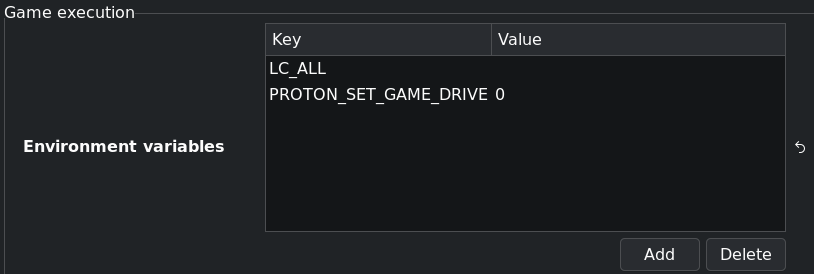
You have to set PROTON_SET_GAME_DRIVE variable to 0 (zero), to disable the automatic drive creation behaviour. Why? If you read the description of Valves official proton github page, it says:
“Create an S: drive which points to the Steam Library which contains the game.”
Seems only vaguely related, or to my eyes not at all, but after hours of testing settings and variables, this is the one i just stumbled upon and worked as expected right out of the gate.
Step by step using lutris’ UI:
- Click on the game
- Open the wine-menu, usally to the right of the wine glass button
- Click on “Wine configuration”
- In the window that opens, select the “Drives” tab
- Select the drive you want to delete and click on remove
- Click on apply and then on ok to exit.
- Check if the drive (symlink) is gone
- Right click on the game you just edited
- Click on “Configure”
- In the window that opens, go to the “System options” tab
- Go down to “Game execution”, you should see an “Environment variables” section
- Click on “Add”, on the left side (Key field) enter: PROTON_SET_GAME_DRIVE
- On the right side (Value field) enter: 0
- Don’t forget after entering a value into the Environment value fields you have to hit enter or the keys/values are not applied
- Hit save to apply the changes
- There will still likely be symlinks left, that point to the home folder, a very sneaky one often is located at:
…/drive_c/users/username/AppData/Roaming/Microsoft/ called “Templates”. I always replace it with an empty folder, and so far haven’t seen any issues with my games.
- To find other potentially leftover symlinks: Go into the prefix of the game, make sure you are the top most folder of the prefix and search for symlinks.
I do it like this:
CAUTION: This command assumes you are already inside the prefix’ top most directory, using your terminal. $PWD is always set to your current working directory! Also take care of what you enter after -exec! find will do whatever you tell it to do, after the -exec option, to ALL files/directories/links/etc… it finds. Also don’t forget the single- and double-quotes, otherwise spaces or special characters in filenames/dir-names can wreak havoc. There are a miriad of other ways to reach the same goal, this is just the way i like to do it.
find "$PWD" -type l -exec ls -lha '{}' \; | grep -vE "net.lutris.Lutris"
This will filter out any symlinks pointing to the net.lutris.Lutris folder, which is fine, since those are all .dll, fonts, exe, etc…-files, which are held centrally (usually at ~/.var/app/net.lutris.Lutris/*). Lutris needs those for the prefixes to work, so don’t mess with them. Anyways, you should now see a list of symlinks and their targets. Look at the targets, most of them should target/loop-back into the prefix itself, if they target a location outside of the prefix, then think about how you want to deal with them.
Again, i am no expert, there could still be some residue links left. This method is obviously not bullet proof, especially in the way i use grep. However, for my purposes this is enough.
- Consider that some symlinks are created when the game launches for the first time, when certain actions are done (for example a thumbdrive is accessed) or when certain options are flipped. So do at least a double check after the game has launched for the first time.
Additional (optional) steps:
-
If you don’t want a symlink pointing straight into /, usually a symlink called z:, simply delete the link and replace it with an empty folder called z:. So far, for my games at least, this hasn’t caused any issues for me
-
If you use the flatpak version of lutris, then, using flatseal (or config files), you can easely revoke the very broad “All user files” permission. However, for lutris to function properly you’ll need to give it a directory inside your home folder to work with. Obviously, if you have already installed prefixes/games, depending on where they are, before setting this option, they become inaccessible and must be recovered manually. Because of this this, denying “All user files” is best set before installing anything using the flatpak version of lutris. Also choose the folder(s) you want to expose to lutris carefully and think about the possible consequences.
-
Denying all “All user files” permission does NOT mean that you deny the prefixes’ ability to create the symlinks we discussed in this post. You will still have to set PROTON_SET_GAME_DRIVE to 0 and take care of all the symlinks manually.